

January 21, 2026


If you want to learn about the different types of preorder campaigns and how to set them up on Shopify, this blog article is for you.
In the Part 1 and Part 2 blog articles, we covered what you need to do before capturing waitlist and running pre-orders, and the basic workaround to set them up on Shopify without any paid apps - since Shopify doesn't have any built-in pre-order functionality.
Today we're going to look at:
1. When you'd need a Shopify pre-order app
2. The different ways to run pre-orders and which type of campaign suits you best
3. How to transition smoothly from waitlist to pre-orders through our Early Bird app (we're Aussie founded btw!!)
4. Then we'll setup a waitlist & coming soon pre-order campaign together
We'll also learn about advanced pre-order features like partial payment, sending shipping update emails, and sending waitlist emails with your customer experience in mind.
You can watch our video version of this article, if you prefer:
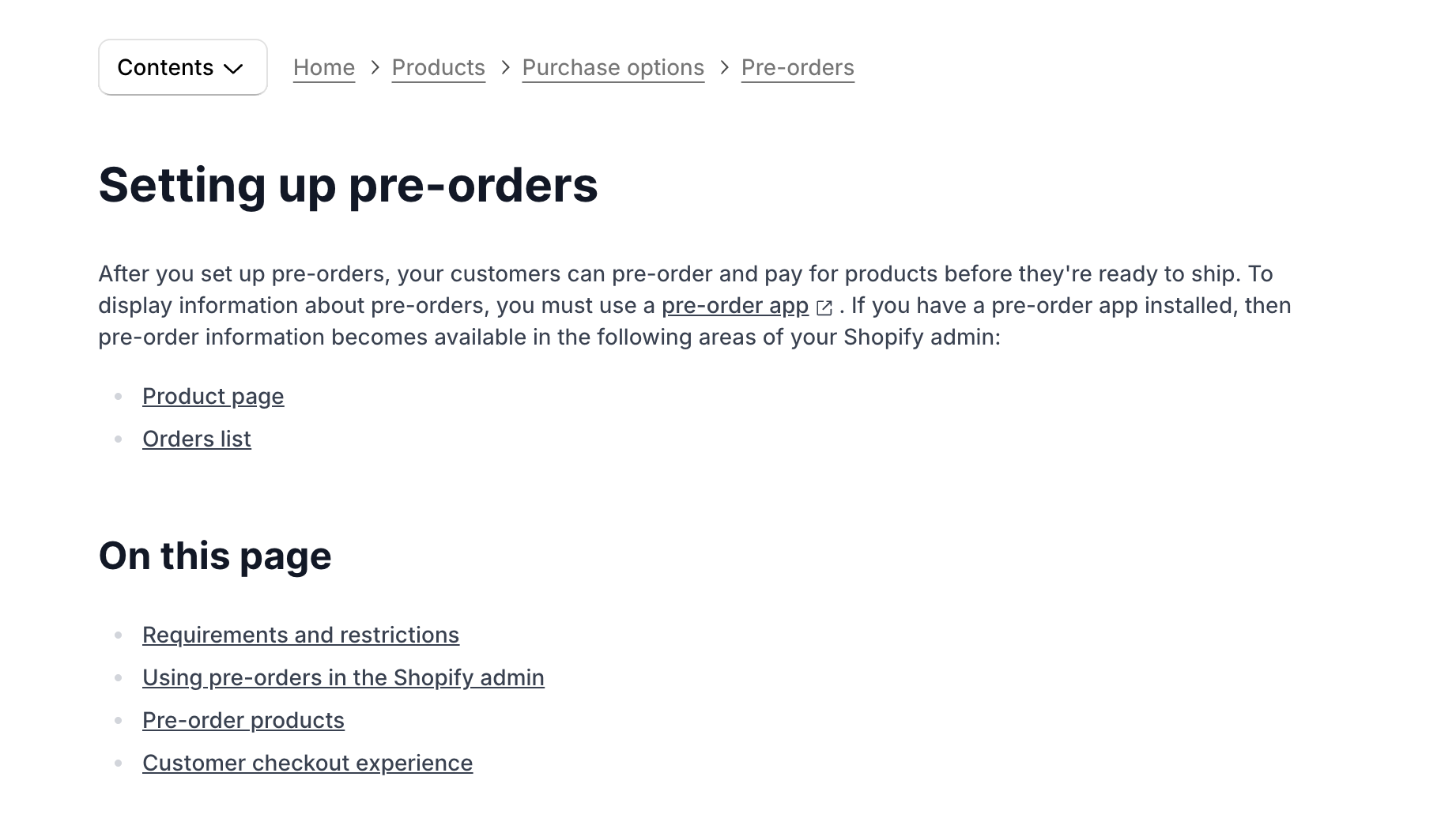
For some product categories, your business model might need more than just changing the add to cart button text. You might need a Shopify pre-order app that does preorders the official way (using Shopify's Selling Plans API) if you're:
These are some of the common reasons why you'd want to use a Built for Shopify pre-order app, so you won't be flagged by Shopify and have your account put on hold for taking payments without fulfilling orders for a long period of time.
Want to avoid your Shopify account being put on hold after pre-order transactions? Check out our article on why it happens and how to fix it.
Shopify has some restrictions around pre-orders that many merchants don't realise, although they do list them in their official FAQs:
Pre-orders currently don't work with:
That's why Early Bird also has the backorder feature as a workaround - which is a simplified version of pre-orders for situations like these.
The manual approach works great for simple scenarios - for when you're just starting out, selling a few products, taking payment upfront and shipping within 30 days.
But if you want to let customers place a deposit first as a reservation, and also provide them with a great end-to-end pre-order customer experience, this is where an app like Early Bird will help you take it to the next level.
When I onboard new Shopify merchants, the first question I ask is: 'How do pre-orders fit into your business operations?" Because the way you run pre-orders can be quite different based on your business model, not just your product category.
Let's look at two fashion brands as examples. One is a high-end and made-to-order brand, running pre-orders as business as usual, and it's deeply embedded into their day-to-day operations. The other fashion brand is a streetwear label that only runs pre-orders every now and then, for new designs or seasonal drops. Same industry, but they have completely different approach to running pre-orders.
Another example based on catalogue size would be a bookstore with thousands of SKUs. Stores like this are often better off just running backorders, while a store selling just a few hero products would be better off running dedicated preorder campaigns.
This is why preorders can be as simple or as complex as you'd like it to be. We've spent a lot of time talking to merchants from 7-8 figures Shopify brands to small local businesses over the past year to understand how pre-orders fit into different businesses models across all types, sizes and verticals.
This is the first option you'll see when you setup a pre-order campaign in the Early Bird app.
Regardless of stock levels, whether inventory level is above 0, at 0, or negative, your customers can pre-order these products.
The goal is to sell as many pre-orders as possible, to validate actual demand through sales, not just waitlist sign-ups. Typically you want to do this before you place a manufacturing order, so you can meet higher MOQs, to reduce your cost per unit or the cost of raw materials.

This approach works best for:
Also suits:
This is the second option you can run as an Early Bird pre-order campaign - where customers can only pre-order while inventory is above zero.
In simpler terms, you're selling pre-orders in limited quantities.

This works for two scenarios:
If you're a new brand, you can expect about 1-5% of your waitlist sign-ups will convert into pre-orders. If you're an established brand, you can expect anywhere between 20% to 50% for your waitlist conversion rate, and 14% for your back in stock conversion rate.
Obviously this varies by product category and price point.
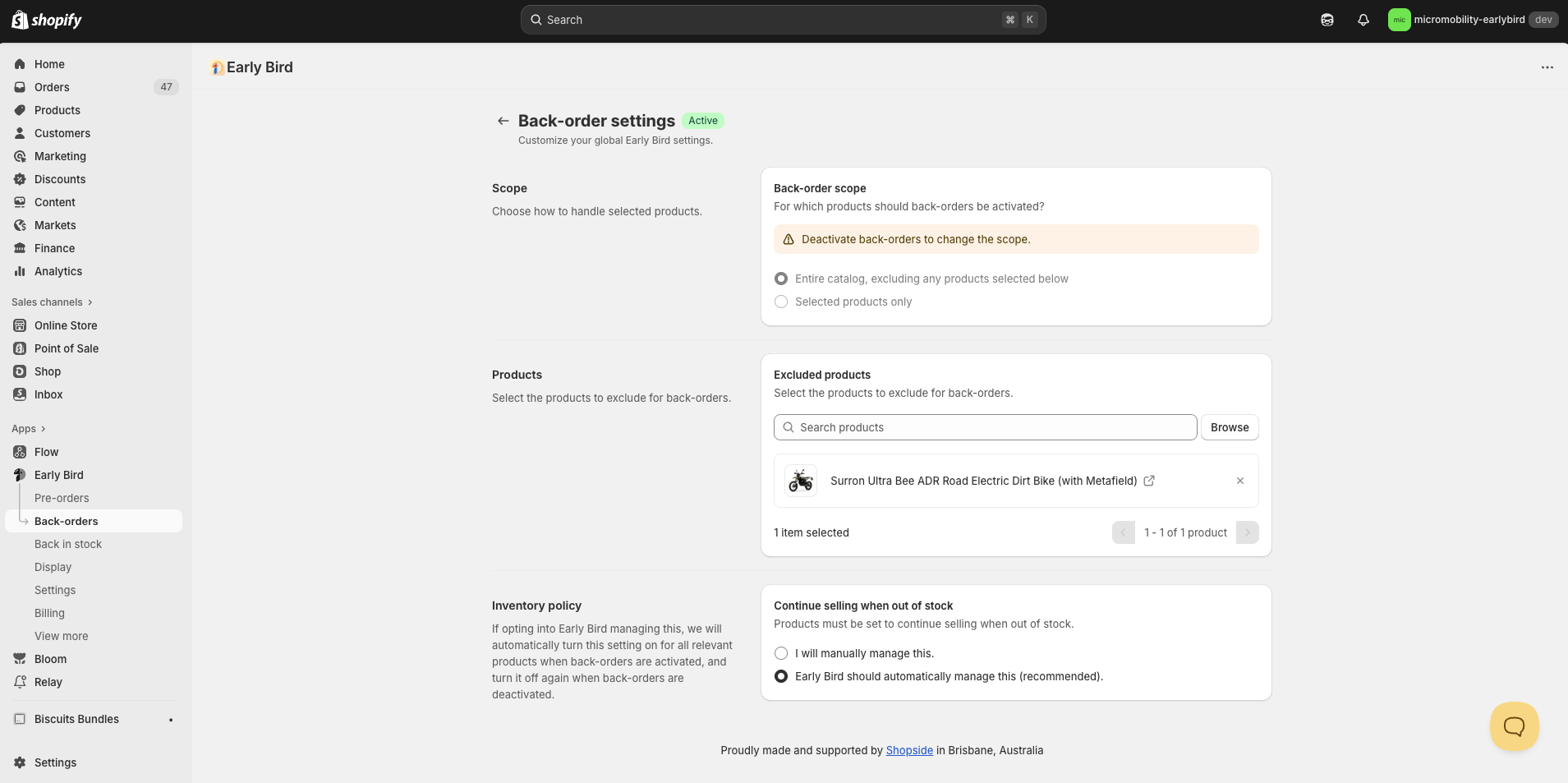
The third option in the Early Bird pre-order campaign set up lets you run backorders just like pre-orders - i.e. customers can only pre-order products while inventory level is at zero or below.

Our backorder feature utilises Shopify's "Continue selling when out of stock" feature and when you enable it, it lets your customers place an order for sold out products.
Sometimes we have merchants who have a large catalogue and want to let customers purchase any sold out products (more so a restock, not necessarily a new product launch), so this is why Early Bird has this feature.
As you can see, pre-orders are not a one-size-fits-all type of thing. If you want to get lots of pre-sales and keep your customers happy, the timeline, communication, and payment options should all be tailored based on your business model and product category.
We're always happy to help if you send us an email at support@shopside.com.au.

When I was doing market research before launching the Early Bird app, I noticed many brands were either just capturing waitlist, back in stock sign-ups, or just running pre-orders and backorders.
It shouldn't be one or the other - the better approach is to combine them together as part of your customer journey.
Which is why I've made this 3-part content series about how to setup a Coming Soon campaign.
For high-ticket items, you can use partial payment to capture a commitment to buy, so it's a lower barrier for customers, or ideally you should capture full payment upfront which is better for your cash flow so you can invest in other business aspects earlier.
Either way, pre-orders is what reflects the actual demand.

Make sure you're:
Otherwise you're missing out on the opportunity to grow your mailing list, and wasting the traffic you've driven to your product pages.
Time to walk through setting up a Coming Soon campaign through our Early Bird app, from start to finish. Throughout this article, I'll use my test development store to show you what customers will see on the storefront, and what you'll manage in the app admin.
Campaign Creation
You can install Early Bird with just two clicks - Press app embed, then Save, and you're good to go.
We have a main dashboard for viewing ALL pre-order campaigns, and a dashboard for each specific campaign to compare product performance.
As mentioned, you'll see the three pre-order options we covered above.
If you have different stock levels for each product or variant, you can manually manage it yourself, otherwise you can authorize Early Bird to automatically apply the same numbers across your campaign.
This is Shopify's native functionality to let customers purchasing product even when it's at 0 or negative inventory.
Depending on your pre-order approach, the Early Bird app can either enable it for unlimited pre-orders, or disable it so you can sell in limited quantities.
This is where you decide when to open up preorders.
You can choose up to either 250 products, or 250 products AND variants in total for each pre-order campaign.
If your customers are happy to pay in full upfront, that's great, if not, you can lower the barrier by letting them place a $ or % deposit first, or a $0 as a reservation. Then you can capture the deferred payment on a set date, or after X number of days if you're running ongoing pre-orders, so you don't have to worry about updating the payment due date for each customer.
Our discount functionality is separate from Shopify's discount codes, so you can stack discounts if you want to. However, this is not recommended since discounting in general will eat into your margins, and double discounting will only cheapen your brand value and efforts.
We usually recommend looking at incentives that are value-add without hurting your margins, such as:
This is important because what you choose here will be shown to customers on the product page, in cart and at checkout. This section is where you assign the default order status to your pre-orders in the Shopify admin as well.
Two things will happen:
The Scheduled status signals to Shopify and its banking partners that your delayed fulfillment is intentional, which will prevent them from flagging and putting your account on hold, even if you ship beyond 30 days.
See also: What are the differences between the Shopify order statuses "Scheduled" vs "Unfulfilled" vs "On Hold"?
It'll display ASAP on your product page, in cart and at checkout. By default, your pre-order status will be Unfulfilled, which is what every normal in-stock order has.
If you're not using a pre-order app, and you're shipping beyond 30 days, that's when it waves a red flag to Shopify as they'll think your customers have bought normal in-stock items but you haven't shipped anything to them yet.
So if you're not ready to use a pre-order app just yet, my recommendations to different people who've asked about this on Reddit - is to document everything, so if the Shopify staff reaches out, you have evidence to show them that you're running pre-orders (just without an app).
Your pre-orders will be put On Hold and it won't show any fulfillment info throughout the customer journey.
You can customise the text on your product page in Early Bird's Display settings, or create an override and only customise it for a specific campaign.
In the Localization settings, you'll be able to customise the ASAP and On Hold (Unknown) text that's shown in cart and at checkout.
---
For our Coming Soon campaign set up example, let's pretend we're going to sell an electric bike.
Let's put "Q4 2025 - JANSNO Electric Bike Pre-orders", and pretend the shipping date will be in mid November.
We plan to only stock 20 of these bikes, so let's choose "Only sell pre-orders while in stock". We plan to stock 10 bikes for each variant, so we can let Early Bird automatically update the number for us.
We don't want to oversell, so we can authorize Early Bird to disable "Continue selling when out of stock".
At the time of recording the video it was mid September, so to stay consistent, in this article we'll also use the same date and time.
First, schedule a start date to run pre-orders in late October, just over 30 days. By setting a future start date, your 'Pre-order Now' button will automatically become a 'Coming Soon' button until we arrive on that scheduled date. Or if you bring that date forward.
For payments, we can offer both options at the same time, so let's try that. Entice them to pay in full with a small 10% discount, let them know they'll get priority shipping, or they can pay a $0 deposit just for a reservation now, and pay the rest at a later date.
It's also possible to capture the deferred payment upon fulfillment, we have a Shopify Flow template for that, you can email us and we'll help guide your setup.
We add both of the variants - Yellow & Gray.
We'll set it to be in mid November. Since we've selected a specific date, the pre-order will be assigned the Scheduled status in the admin, and the date will be displayed to customers on your product page, in cart, and at checkout.
All you need to do next is just Schedule/Publish the campaign and that's it for pre-orders!
If you want, you can also customise the badges shown on your Collection and Product pages in your Localisation settings.
You can change them to say Coming Soon instead of Pre-order, just keep in mind this setting is applied storewide across all your campaigns.
This is what your customers will see on the product page:
Next, let's go activate the Back in stock feature and add the waitlist sign-up widget on the product page as well.
---
In Early Bird's Back in stock settings, you can either enable it across your entire catalog, or for selected products only.
You can send the emails automatically or manually, but the key feature here you can control who to get notified first, how many of them, and when they will get notified.
If you have 500 people on the waitlist but you're only stocking 20 bikes (let's keep it simple and pretend they're happy with any variants), Iyou can send to the first 100 signups, wait an hour, then send to the next 100, and so on. This way those who've signed up the earliest will get first access, and you're not sending people to a sold out page.
Customer experience is an important part of running pre-orders.
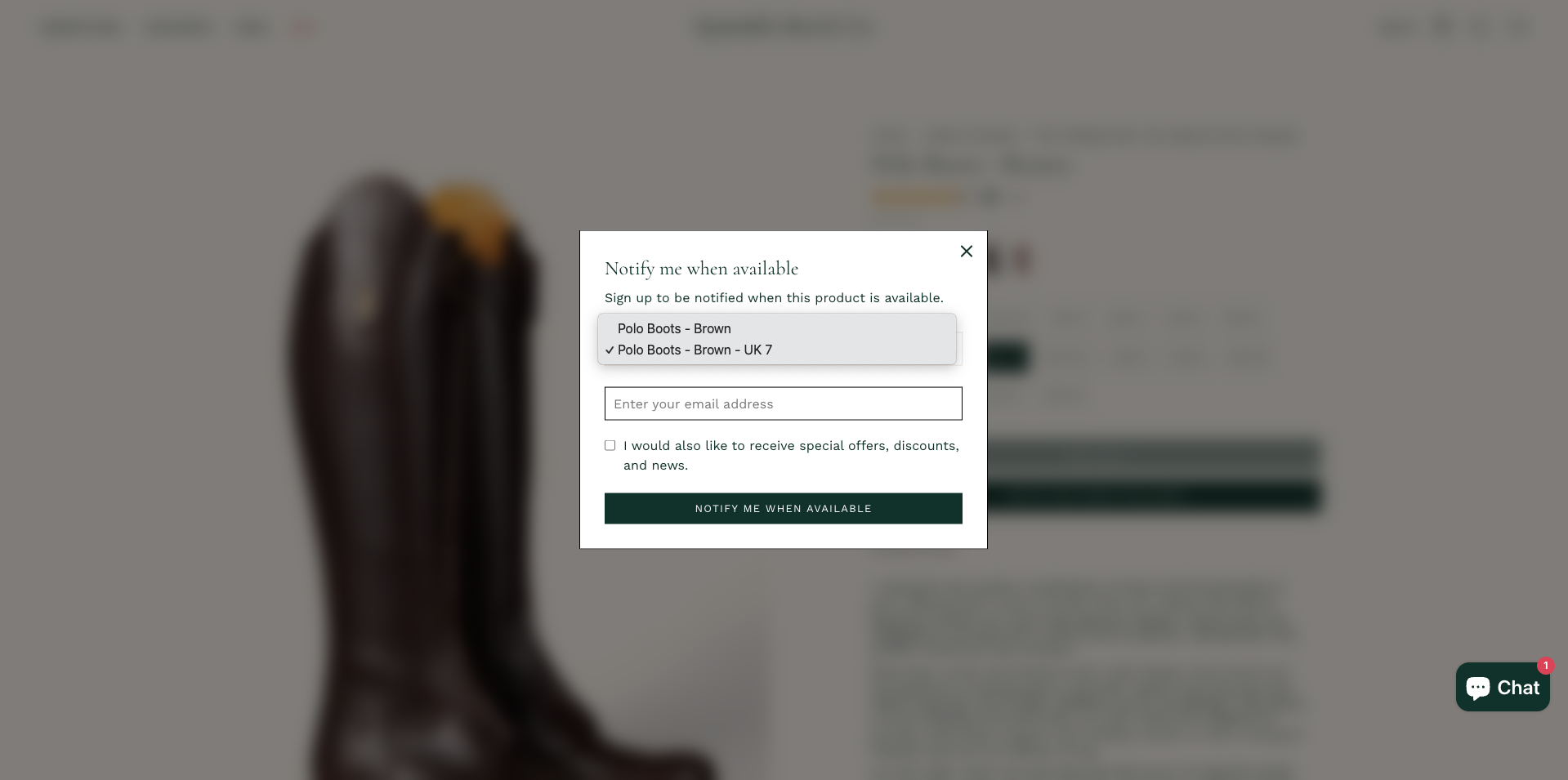
Once you've added the product, go back to the product page, and you'll now see a 'Notify Me' button underneath the Coming Soon button.
What our Shopify merchants like about this setup is their customers can sign up for the product in general, or just specific variants. If you sell apparel, your customers likely won't care about the other sizes.
So if someone only wants the Large Black hoodie, they won't get emails about the Small white one coming back in stock.
Our form widget also helps you capture marketing consent, so you're growing your mailing list while building your waitlist at the same time.
When you're ready to open up pre-orders, it's time to notify your waitlist.
---
To open up pre-orders, you either wait for the scheduled start date, or you can move the start date forward in the campaign settings.
The Coming Soon button on your product page will then change to Pre-order Now.
For the badges on your collection and product pages, if you've customised the text, make sure you change it back to Pre-order in the Display or Localisation settings.
When a pre-order comes in, it will show up both in your Shopify Order Admin along with all other normal orders, or you can view just the pre-orders on the Early Bird campaign dashboard.
All the info is there, from pre-order revenue, to payment status and fulfillment status.
To make changes while your pre-order campaign is running, like extend the pre-orders, or update the fulfillment date - you'll need to pause it first, update the changes, then publish it again. Payment options though, can be changed without pausing.
If you bring forward or postpone the fulfillment date, a banner will pop up on your Early Bird campaign dashboard after you exit the settings. You can either one-click email all the customers who've bought products in this campaign, and if you'd like to update the order status from Scheduled to Unfulfilled.
If you're using a 3PL, most of them will only recognise orders with Unfulfilled status, so this is where the bulk order status feature comes in handy.
See also: How to set up Shopify pre-orders with multiple locations and 3PL fulfillment?
Before you notify customers about the shipment update, you'll get to review the email first, edit the template if needed, before you send it to all relevant customers with one-click.
Shipping delays are often a matter of when it will happen, not if, so you'll likely have to use this feature. Transparency is key to running pre-orders, so if you do end up having shipping delays, don't shy away from letting your customers know - they've placed a pre-order, they know it'll take longer than normal orders, you just need to give them the peace of mind that the shipment is on its way. Most of the time they'll be understanding.
Based on the merchants we've worked with, on average we see less than 0.5% of pre-order cancellations.
Speaking of pre-order cancellations, Early Bird has an app extension where customers can login to their accounts and initiate pre-order cancellation on their end. Not that we want this to happen to you, but in case it does, we've designed to make it easier for you to approve it, instead of going back and forth through emails, your Shopify admin, go look for the order, and only then you start the cancellation process.
So that's it! This is how you set up a Coming Soon campaign capturing waitlist sign-ups before you run pre-orders.
Where do you go from here?
One thing we emphasise a lot on, is all the tech you have, all the apps, they're only as good as how you execute everything.
Your brand, product demand, your customer experience, and most importantly your marketing and distribution will determine the results.
Check out our Part 1 article to learn about the fundamentals of preorders.
Any questions, let me know in the comments, feel free to connect with me on LinkedIn, or email us at support@shopside.com.au.


