

January 2, 2026


Recently, I came across three similar posts on Reddit asking how to handle pre-orders on Shopify without messing up their inventory.
The merchants were all launching high-demand products and wanted to run pre-orders, but they were worried about having to freeze their existing inventory and causing fulfillment issues.
"We're launching a highly anticipated gadget, and we want to accept pre-orders without freezing in-stock inventory. Apps that mark products as 'pre-order' often make reporting and fulfillment messy, and manual checks slow everything down."
Merchants who are new to Shopify will assume they need to:
In reality, you don't need any of that.
The solution is built into the Early Bird preorder app - using a campaign setting that controls when your Shopify inventory gets deducted.
Example:
So the question becomes: When should a pre-order be deducted from your available inventory?
The answer is it depends on your business model.
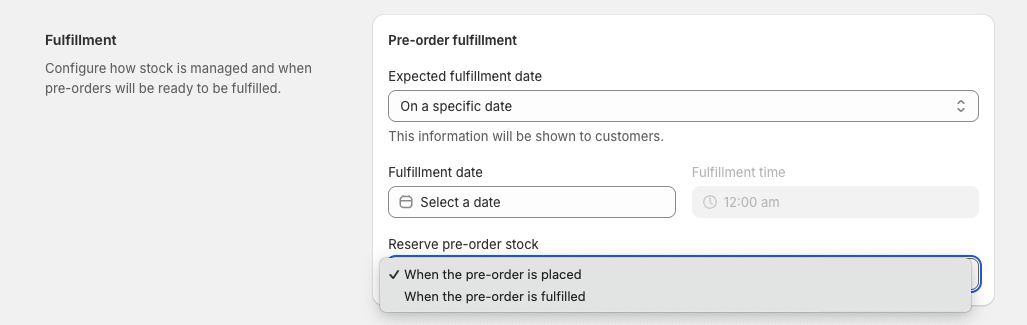
When you set up an Early Bird pre-order campaign, there's a setting that allows you to control exactly when the Shopify inventory is deducted.
You have two options:
When a customer places a pre-order, the inventory decreases immediately - just like a regular order.
Example:
This means pre-orders and regular orders pull from the same inventory pool, but committed units are locked immediately.
When to use this:
This way, your reporting stays clean and your "available inventory" will always reflect what's actually available. You won't need to use a spreadsheet for manual track, and there's no risk of accidentally selling the same unit twice.
When a customer places a pre-order, the inventory stays the same. It only decreases when you mark the order as fulfilled in Shopify.
Example:

When to use this:
The trade-off is this will be riskier. If regular customers buy stock while you have pending pre-orders, you could oversell. You'll need to manually monitor committed pre-orders vs. available inventory.
Let's go through a real pre-order setup in my test Shopify store.
Say you're selling cruiser skateboards with two variants:

Here's how you'd set this up in the Early Bird campaign:
Pre-order Campaign A: Blue wheels pre-order


Pre-order Campaign B: Pink wheels pre-order


Both pre-order campaigns can run simultaneously on the same product since it's actually for different variants. With this approach, your Shopify inventory tracking will stay accurate to the setting you've selected for each variant. No duplicate SKU or manual spreadsheet tracking required.
If you're using stock limits in your pre-order campaign (e.g. A specific inventory level for the product or across variants), you must use "Reserve inventory when the pre-order is placed".
This is because stock limits need real-time inventory tracking. If you're only reserving inventory at fulfillment, Early Bird app won't be able to enforce limit overselling properly - it doesn't know how many units you've actually committed.
You might have noticed in the first campaign's screenshot above, Early Bird shows you a warning if you try to enable stock limits with the wrong setting:
⚠️ When using stock limits, inventory must be reserved when the pre-order is placed.
Before launching your Early Bird pre-order campaign, you can do a quick test:
This quick check will take less than 2 minutes but will give you peace of mind before the launch.
For most merchants we've worked with, they typically launch products with confirmed stock and just want to secure cash flow earlier. Therefore "Reserve inventory when the pre-order is placed" is the safer choice.
It prevents overselling, keeps your 3PL happy, and ensures your reporting is always accurate.
Use "Reserve inventory when the pre-order is fulfilled" only if you genuinely don't control the inventory yet (dropshipping, made-to-order, etc.) and you're comfortable with overselling (selling as many as possible).
If you're using Early Bird, you'll find this setting in the Fulfillment section when creating your pre-order campaign.
If you need help deciding which setting to use for your specific situation, or want some guidance with your pre-order setup, connect with me on LinkedIn or get in touch with us at support@shopside.com.au.


